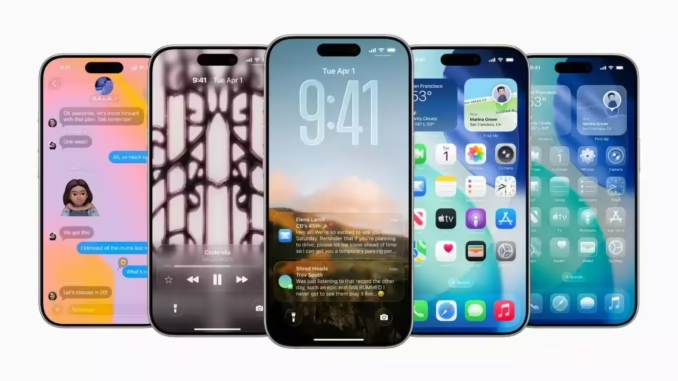
Best iPhone Features You Might Not Know About
The iPhone is known for its sleek design and powerful performance, but many users only scratch the surface of what it can really do. Behind the familiar interface are dozens of hidden tools and features designed to make everyday tasks faster, easier, and more convenient. Whether you’ve owned an iPhone for years or just bought your first one, there are likely several capabilities you haven’t discovered yet.
Here are some of the best iPhone features you might not know about.
1. Back Tap for Quick Actions
One of the most surprising hidden features in modern iPhones is Back Tap. This feature lets you perform actions simply by tapping the back of your phone.
You can set a double tap or triple tap to do things like:
-
Take a screenshot
-
Turn on the flashlight
-
Open the camera
-
Launch a specific app
To enable it:
-
Open Settings
-
Tap Accessibility
-
Tap Touch
-
Select Back Tap
This feature was introduced in iOS 14 and works on many newer iPhone models.
2. Scan Documents Using the Notes App
You don’t need a separate scanning app to digitize paperwork. The built-in Apple Notes app includes a powerful document scanner.
To scan a document:
-
Open Notes
-
Create a new note
-
Tap the camera icon
-
Choose Scan Documents
Your iPhone automatically detects the document edges, adjusts lighting, and saves it as a PDF.
3. Use the iPhone as a Magnifying Glass
If you struggle to read small text, your iPhone can act as a magnifier.
The Magnifier (iOS Accessibility Feature) uses the camera to zoom in on objects, labels, menus, and more.
To enable it:
-
Go to Settings
-
Tap Accessibility
-
Select Magnifier
You can adjust brightness, contrast, and zoom for easier reading.
4. Drag and Drop Between Apps
Many people don’t realize that iPhones support drag-and-drop gestures between apps.
For example, you can:
-
Drag photos into emails
-
Move text between apps
-
Drop files into notes
This feature works especially well with multitasking on newer iPhones and iPads running iOS.
5. Measure Objects with the Measure App
Your iPhone can measure real-world objects using augmented reality.
The built-in Measure (Apple app) app lets you:
-
Measure furniture
-
Estimate room dimensions
-
Check object sizes
Just point the camera at an object and follow the on-screen prompts.
While it’s not as precise as professional tools, it’s extremely convenient for quick measurements.
6. Silence Unknown Callers
Spam calls can be frustrating. Luckily, iPhones have a built-in feature to silence unknown numbers automatically.
Enable it by:
-
Opening Settings
-
Tap Phone
-
Turn on Silence Unknown Callers
Calls from numbers not in your contacts will go directly to voicemail.
7. Hide Private Photos
If you want to keep certain photos private, you can hide them in the Apple Photos app.
Steps:
-
Open Photos
-
Select a picture
-
Tap the Share button
-
Choose Hide
Hidden photos are moved to a special album that can be locked with Face ID or a passcode.
8. Live Text for Copying Text from Photos
With Live Text (Apple), you can copy text directly from images.
For example, you can:
-
Copy a phone number from a sign
-
Translate text from a photo
-
Copy an address from a screenshot
Simply open an image in the Photos app and tap the text that appears.
This feature is powered by advanced machine learning in recent versions of iOS.
9. Turn Your Keyboard into a Trackpad
Typing corrections are much easier when you turn your keyboard into a trackpad.
To activate it:
-
Press and hold the space bar
-
The keyboard becomes a trackpad
-
Move your finger to position the cursor precisely
This trick makes editing text much faster.
10. Use Focus Modes for Productivity
Focus modes help reduce distractions by controlling which notifications appear.
The Focus (Apple) system lets you create modes such as:
-
Work
-
Sleep
-
Personal
-
Driving
You can allow notifications only from certain apps or contacts.
Focus modes were introduced in iOS 15.
11. Identify Songs Instantly
Your iPhone can identify music playing nearby without installing extra apps.
The built-in integration with Shazam allows you to recognize songs instantly.
To use it:
-
Open Control Center
-
Tap the Music Recognition button
Within seconds, your iPhone tells you the song name and artist.
12. Use Siri for Faster Tasks
Apple’s voice assistant Siri can do far more than set alarms.
You can ask Siri to:
-
Send messages
-
Open apps
-
Check the weather
-
Control smart home devices
-
Set reminders
Voice commands save time and reduce the need for manual navigation.
13. Visual Lookup for Objects
Your iPhone can identify objects in photos.
The Visual Lookup (Apple) feature can recognize:
-
Plants
-
Animals
-
Landmarks
-
Food
Just open a photo and tap the information icon if it appears.
This tool uses Apple’s AI technology to analyze images.
14. Quickly Undo Typing Mistakes
If you accidentally delete or type something wrong, simply shake your phone.
The Shake to Undo feature allows you to undo recent typing actions.
It’s a quick shortcut that many users overlook.
Final Thoughts
The iPhone is packed with powerful tools that many users never discover. Features like Back Tap, Live Text, document scanning, and Focus modes can dramatically improve how you use your device every day.
As Apple Inc. continues to release new versions of iOS, even more features are added to enhance productivity, convenience, and security.
Taking the time to explore these hidden capabilities can help you get far more value out of your iPhone and make everyday tasks quicker and easier.
If you’d like, I can also create:
-
“25 Hidden iPhone Features Most People Don’t Know” (2000-word SEO article)
-
“Secret iPhone Tricks That Feel Like Magic”
-
“iPhone Settings You Should Change Right Now”
-
Viral blog titles for tech websites.


Leave a Reply