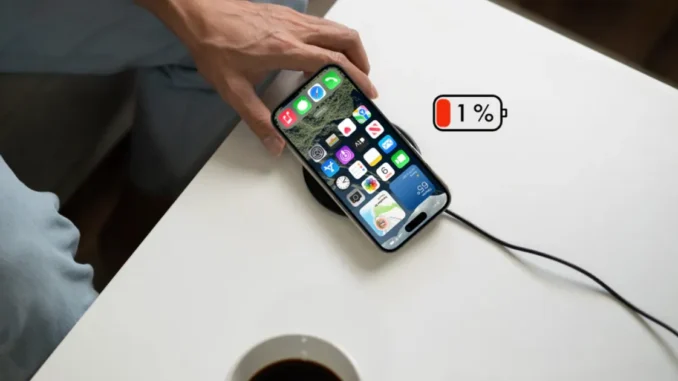
How to Improve Your iPhone Battery Life
Battery life is one of the most important aspects of the smartphone experience. No matter how powerful or advanced your iPhone is, it becomes frustrating if the battery drains too quickly during the day. Fortunately, there are several simple adjustments you can make to extend your battery life and keep your device running longer between charges.
Whether you use your iPhone for work, entertainment, or communication, the tips below will help you get the most out of your battery.
1. Enable Low Power Mode
One of the easiest ways to extend battery life is to activate Low Power Mode (iOS). This feature temporarily reduces background activity like downloads, mail fetch, and visual effects.
To turn it on:
-
Open Settings
-
Tap Battery
-
Enable Low Power Mode
When activated, your battery icon turns yellow. This mode can significantly extend battery life when your charge is running low.
2. Reduce Screen Brightness
Your screen is one of the biggest battery consumers on any smartphone.
Lowering brightness can make a noticeable difference in battery performance.
You can adjust brightness by:
-
Opening Control Center
-
Dragging the brightness slider downward
You can also enable Auto-Brightness in Settings > Accessibility > Display & Text Size, which allows the iPhone to adjust brightness automatically based on lighting conditions.
3. Turn Off Background App Refresh
Some apps continue updating content in the background even when you’re not using them.
This feature, called Background App Refresh, can drain battery throughout the day.
To disable it:
-
Open Settings
-
Tap General
-
Tap Background App Refresh
-
Turn it off or limit it to specific apps
Disabling this for unnecessary apps can noticeably improve battery performance.
4. Manage Location Services
Many apps request access to your location, even when they don’t need it.
Location tracking uses GPS and other sensors, which can consume battery power.
To manage it:
-
Go to Settings
-
Tap Privacy & Security
-
Select Location Services
Set most apps to “While Using the App” instead of “Always.”
This prevents apps from constantly accessing your location in the background.
5. Turn Off Push Email
If your email accounts use Push, your iPhone constantly checks for new messages, which uses more power.
To adjust this:
-
Open Settings
-
Tap Mail
-
Tap Accounts
-
Select Fetch New Data
Switch from Push to Fetch, and choose a longer interval such as every 30 or 60 minutes.
6. Disable Unnecessary Notifications
Notifications wake your screen and use processing power.
Limiting them can help preserve battery life.
To adjust notifications:
-
Open Settings
-
Tap Notifications
-
Turn off notifications for apps you rarely use
This reduces unnecessary screen activity throughout the day.
7. Use Wi-Fi Instead of Cellular Data
Using cellular data typically consumes more battery than Wi-Fi.
Whenever possible:
-
Connect to Wi-Fi networks
-
Turn off mobile data when it isn’t needed
This can help extend battery life, especially in areas with weak signal strength.
8. Enable Optimized Battery Charging
Modern iPhones include Optimized Battery Charging, which helps reduce battery aging.
This feature learns your daily charging routine and slows down charging after 80% until you need the phone.
To enable it:
-
Open Settings
-
Tap Battery
-
Tap Battery Health & Charging
-
Turn on Optimized Battery Charging
This helps maintain long-term battery health.
9. Keep Your iPhone Updated
Apple regularly improves battery efficiency with software updates.
Running the latest version of iOS ensures your device benefits from performance improvements and bug fixes.
To check for updates:
-
Open Settings
-
Tap General
-
Tap Software Update
Installing updates can sometimes improve battery performance significantly.
10. Reduce Motion and Visual Effects
Animations and visual effects look nice, but they also use additional processing power.
You can reduce them by enabling Reduce Motion (iOS Accessibility Feature).
Steps:
-
Go to Settings
-
Tap Accessibility
-
Tap Motion
-
Turn on Reduce Motion
This not only saves battery but may also make the device feel faster.
11. Limit Widgets on the Lock Screen
Widgets continuously refresh to show updated information such as weather, news, or stock prices.
Removing unnecessary widgets can reduce background activity and save battery.
You can edit widgets by long-pressing the home or lock screen and selecting the Edit option.
12. Check Battery Usage by App
Your iPhone provides detailed battery usage statistics.
To view them:
-
Open Settings
-
Tap Battery
You’ll see which apps are consuming the most power.
If an app is draining excessive battery, consider limiting its background activity or removing it.
13. Avoid Extreme Temperatures
Battery performance can drop when your device is exposed to extreme heat or cold.
Apple recommends using iPhones between 0°C and 35°C (32°F to 95°F).
High temperatures can permanently damage the battery and reduce its lifespan.
Avoid leaving your phone in hot cars or direct sunlight.
14. Turn Off Bluetooth and AirDrop When Not Needed
Wireless features like Bluetooth and AirDrop continuously search for nearby devices.
Turning them off when not needed can help conserve battery.
You can quickly disable them in Control Center.
Final Thoughts
Improving your iPhone’s battery life doesn’t require complicated tools or expensive accessories. By adjusting a few settings—such as enabling Low Power Mode (iOS), limiting background activity, and managing brightness—you can dramatically extend the amount of time your phone lasts throughout the day.
Regularly monitoring battery usage and keeping your device updated with the latest version of iOS can also help maintain optimal performance.
With these tips, you’ll be able to enjoy longer battery life, fewer charging interruptions, and a smoother overall iPhone experience.
Leave a Reply