How to Free Up Storage Space on Your iPhone
Running out of storage on your iPhone can be frustrating. When your device is full, you may not be able to install new apps, take photos, download updates, or even receive messages. Fortunately, there are several easy ways to free up space and keep your iPhone running smoothly.
In this guide, you’ll learn practical methods to clear unnecessary files and manage storage more efficiently on your iPhone.
1. Check What’s Using Your Storage
Before deleting anything, it’s important to see what is taking up space on your device.
To check storage usage:
-
Open Settings
-
Tap General
-
Tap iPhone Storage
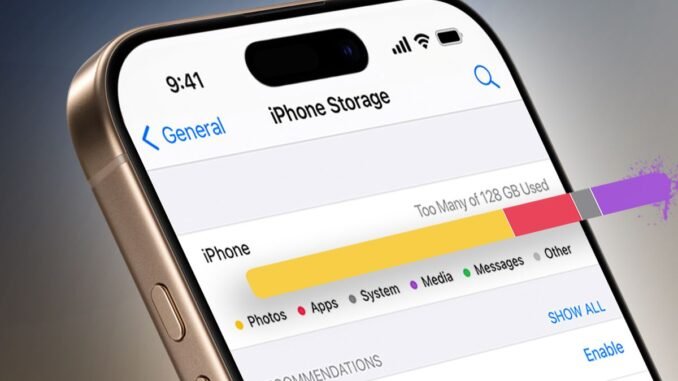
Your iPhone will display a breakdown of how much space each app is using. This feature is built into iOS and helps you identify the biggest storage consumers.
Common storage hogs include:
-
Photos and videos
-
Large apps
-
Messages with attachments
-
Downloaded media
Once you know what’s using the most space, you can start cleaning up effectively.
2. Delete Unused Apps
Many people install apps they rarely use. Over time, these apps take up valuable storage.
To remove them:
-
Go to Settings
-
Tap General
-
Tap iPhone Storage
-
Select the app you want to delete
-
Tap Delete App
Alternatively, you can press and hold the app icon on the home screen and tap Remove App.
Deleting unused apps can free up a surprising amount of space.
3. Offload Apps Instead of Deleting Them
If you don’t want to completely remove an app, you can offload it instead.
This feature removes the app but keeps its data, allowing you to reinstall it later without losing information.
To enable it:
-
Open Settings
-
Tap General
-
Tap iPhone Storage
-
Select an app
-
Tap Offload App
This is a helpful feature built into iOS that automatically frees up space when storage is low.
4. Delete Duplicate Photos and Videos
Photos and videos often take up the most storage space.
Open the Apple Photos app and review your media library. Look for:
-
Duplicate photos
-
Blurry images
-
Unnecessary screenshots
-
Large videos
Recent versions of iOS even include a Duplicates album that helps identify repeated images automatically.
Deleting large videos alone can free several gigabytes of storage.
5. Use iCloud Photo Storage
If you want to keep your photos but free up device space, enable iCloud photo storage.
To enable it:
-
Open Settings
-
Tap your name
-
Tap iCloud
-
Tap Photos
-
Turn on iCloud Photos
You can also enable Optimize iPhone Storage, which keeps smaller versions of photos on your device while storing the originals in iCloud.
6. Clear Safari Cache
Your browser stores website data that can accumulate over time.
If you use Safari, clearing its cache can free up storage.
To clear it:
-
Open Settings
-
Tap Safari
-
Tap Clear History and Website Data
This removes browsing data such as cookies and cached files.
7. Delete Large Message Attachments
Messages with photos, videos, and GIFs can consume a lot of storage.
Open Settings → General → iPhone Storage → Messages to see large attachments.
You can delete:
-
Old photos
-
Large videos
-
GIFs
Removing these attachments helps reclaim valuable storage space.
8. Automatically Delete Old Messages
You can set your iPhone to automatically delete old messages.
To enable it:
-
Open Settings
-
Tap Messages
-
Tap Keep Messages
-
Choose 30 Days or 1 Year
This prevents your message history from growing too large.
9. Remove Downloaded Media from Apps
Streaming apps often download content for offline viewing.
Apps like Netflix, Spotify, and YouTube may store large files on your device.
Open these apps and delete:
-
Offline videos
-
Downloaded music
-
Cached media
This can free up several gigabytes quickly.
10. Use the Optimize Storage Feature for Music
If you listen to music offline, your device may store many songs locally.
The Optimize Storage feature in Apple Music automatically removes songs you haven’t listened to recently when space is low.
You can enable it by:
-
Opening Settings
-
Tapping Music
-
Turning on Optimize Storage
11. Delete Old Voice Memos
Voice recordings can accumulate over time.
Open the Voice Memos app and delete recordings you no longer need.
Long recordings can take up significant storage space.
12. Restart Your iPhone
Although it may sound simple, restarting your device can clear temporary files and system caches.
This doesn’t free huge amounts of storage, but it can help your device run more efficiently.
Final Thoughts
Running out of storage on your iPhone doesn’t necessarily mean you need to buy a new device. By reviewing what’s using space and deleting unnecessary files, you can quickly free up several gigabytes of storage.
Start by checking storage usage in iOS, removing unused apps, cleaning up photos, and clearing browser data. Using cloud storage services like iCloud can also help keep your device organized without losing important files.
With a few simple habits—like deleting old media and managing downloads—you can keep your iPhone running smoothly and ensure there’s always room for new apps, photos, and updates.
If you want, I can also write these high-traffic iPhone SEO articles for you:
-
“20 iPhone Settings You Should Change Right Now”
-
“Hidden iPhone Camera Tricks for Better Photos”
-
“Why Your iPhone Is Slow (And How to Fix It)”
-
“iPhone Security Tips to Protect Your Data”.
Leave a Reply