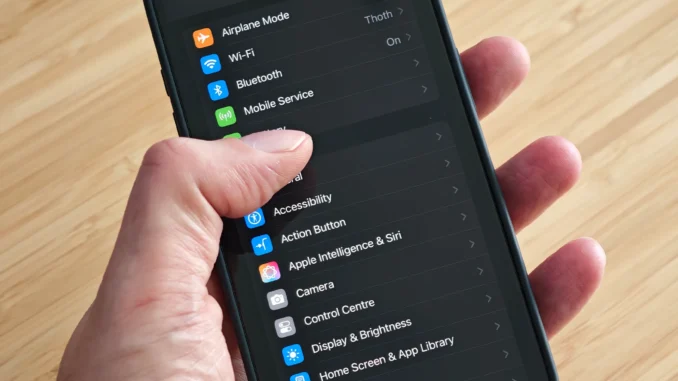
Essential Settings to Change on a New iPhone
A new iPhone from Apple Inc. is designed to work smoothly right out of the box. But what many users don’t realize is that the default settings are made for general convenience—not for maximum privacy, performance, battery life, or personalization.
If you take a few minutes to adjust the right settings after setup, you can make your iPhone significantly safer, faster, more efficient, and better suited to your daily use.
This guide walks you through the most essential settings you should change on a new iPhone, step by step.
1. Set a Strong Passcode and Enable Biometric Security
Your passcode is the first and most important layer of protection.
What to do:
Go to:
-
Settings → Face ID & Passcode (or Touch ID & Passcode)
Then:
-
Set a 6-digit passcode or alphanumeric password
-
Enable:
-
Face ID
-
or Touch ID (depending on model)
-
Why it matters:
-
Prevents unauthorized access
-
Protects personal data, photos, and apps
-
Secures banking and payment information
Avoid weak codes like birthdays or repeated numbers.
2. Turn On Find My iPhone
One of the most important safety features you should enable immediately.
Enable:
Find My
Features include:
-
Locating your device on a map
-
Locking your phone remotely if lost
-
Erasing data to prevent theft access
Why it matters:
If your phone is lost or stolen, this feature can save your data and help recover your device.
3. Enable Two-Factor Authentication (2FA)
Two-factor authentication adds an extra layer of protection to your Apple ID.
How it works:
Even if someone knows your password, they still need a verification code sent to your trusted device.
Why you should enable it:
-
Prevents account hacking
-
Protects iCloud data
-
Secures app purchases and backups
You can enable it in Apple ID settings under Password & Security.
4. Set Up iCloud Backup
iCloud is essential for protecting your data.
What to back up:
-
Photos and videos
-
Contacts
-
Messages
-
App data
-
Settings
Why it matters:
-
Restores your phone if lost or damaged
-
Makes switching to a new iPhone easy
-
Prevents permanent data loss
Make sure automatic backup is turned on.
5. Adjust Privacy and Location Settings
Privacy is a major concern in the digital age.
Go to:
Settings → Privacy & Security → Location Services
Recommended changes:
-
Set location access to “While Using the App”
-
Disable location for unnecessary apps
-
Turn off background tracking where possible
-
Review camera and microphone permissions
Why it matters:
-
Prevents apps from tracking your movements constantly
-
Improves battery life
-
Protects sensitive personal data
6. Manage Notifications for a Cleaner Experience
Too many notifications can be distracting and drain battery.
Go to:
Settings → Notifications
What to do:
-
Disable unnecessary app notifications
-
Turn off lock screen previews for private apps
-
Group notifications by app
Benefits:
-
Less distraction
-
Better focus
-
Improved battery efficiency
7. Disable or Limit Background App Refresh
Many apps update in the background even when not in use.
Go to:
Settings → General → Background App Refresh
Recommended setup:
-
Turn OFF for non-essential apps
-
Keep ON only for important apps (maps, messaging, email)
Why it matters:
-
Saves battery life
-
Improves performance
-
Reduces data usage
8. Enable Automatic Software Updates
Keeping your system updated is crucial for performance and security.
Go to:
Settings → General → Software Update → Automatic Updates
Enable:
-
iOS updates
-
Security updates
-
System improvements
Why it matters:
-
Fixes bugs
-
Improves speed and stability
-
Protects against security vulnerabilities
9. Optimize Battery Settings
Battery health affects long-term performance.
Go to:
Settings → Battery → Battery Health & Charging
Enable:
-
Optimized Battery Charging
-
Low Power Mode (when needed)
Why it matters:
-
Extends battery lifespan
-
Reduces long-term battery degradation
-
Improves daily efficiency
10. Customize Control Center
Control Center is your shortcut hub.
Go to:
Settings → Control Center
Add useful tools:
-
Screen recording
-
Low Power Mode
-
Calculator
-
Flashlight
-
Dark Mode toggle
Why it matters:
-
Faster access to frequently used features
-
Saves time navigating settings
11. Set Up Emergency SOS
Emergency features can be life-saving.
Go to:
Settings → Emergency SOS
What it does:
-
Quickly contacts emergency services
-
Shares your location with trusted contacts
-
Works even when your phone is locked
Why it matters:
It ensures help can be reached quickly in critical situations.
12. Turn Off Unnecessary System Features
Some default features consume resources without providing much value for every user.
Consider disabling:
-
Unused Siri suggestions
-
Unnecessary analytics sharing
-
Automatic downloads for apps or updates (if preferred manual control)
Why it matters:
-
Improves performance
-
Saves battery
-
Reduces background activity
13. Organize Your Home Screen
A clutter-free iPhone is easier and faster to use.
Tips:
-
Remove unused apps
-
Group apps into folders
-
Use App Library instead of multiple home screens
-
Keep frequently used apps on the first screen
Benefits:
-
Faster navigation
-
Better productivity
-
Cleaner user experience
14. Enable Account Recovery Options
Protect your Apple ID from being locked out.
Do this:
-
Add trusted phone numbers
-
Add recovery email
-
Set up account recovery contacts if available
Why it matters:
If you lose access, recovery options help restore your account.
15. Optional: Reduce Motion for Smoother Feel
If you want a more responsive experience:
Go to:
Settings → Accessibility → Motion → Reduce Motion
Effects:
-
Reduces animations
-
Makes transitions faster
-
Can improve perceived performance
Final Thoughts
A new iPhone is powerful on its own, but the real experience depends on how you configure it. By adjusting essential settings early, you improve not only performance but also privacy, security, and convenience.
The most important takeaway is this:
Don’t rely on default settings—customize your iPhone to fit your life.
Once you set up these changes, your device becomes faster, safer, and far more efficient for everyday use.
Leave a Reply