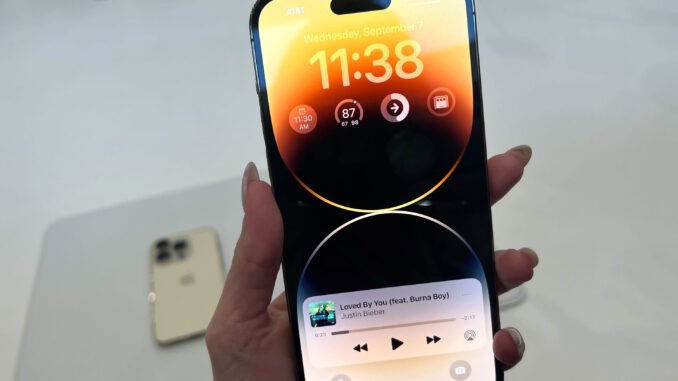
25 Tips to Get the Most Out of Your iPhone
The iPhone is packed with powerful features that many users never fully explore. Whether you’re using a newer model like the Apple iPhone 15 or an older device such as the Apple iPhone 12, learning a few hidden tricks can significantly improve your experience. From boosting productivity to protecting your privacy, these tips will help you unlock the full potential of your device.
Below are 25 practical tips to help you get the most out of your iPhone.
1. Customize the Control Center
The Control Center gives quick access to essential tools like Wi-Fi, brightness, and flashlight. But you can customize it to include shortcuts for Screen Recording, Notes, Low Power Mode, and more.
Go to Settings → Control Center, then add or remove controls according to your needs.
2. Use Back Tap for Quick Actions
Apple added a hidden feature that lets you double-tap or triple-tap the back of your phone to perform actions.
Enable it by going to Settings → Accessibility → Touch → Back Tap.
You can set it to take a screenshot, open the camera, or launch an app.
3. Turn Your Keyboard Into a Trackpad
Editing text on a small screen can be frustrating. Instead of tapping around, press and hold the space bar to transform the keyboard into a trackpad.
This lets you move the cursor precisely across text.
4. Schedule Messages to Send Later
While the default messaging app doesn’t directly schedule messages, you can use Shortcuts automation to send texts at a specific time.
Open the Apple Shortcuts app and create a new automation to send a message automatically.
5. Scan Documents Instantly
You don’t need a scanner. The Apple Notes app includes a document scanner.
Open a note → tap the camera icon → select Scan Documents.
It automatically detects edges and enhances the scan.
6. Use Live Text to Copy Text From Images
Live Text allows you to copy phone numbers, addresses, and text directly from photos.
Just open an image in the Photos app, tap the text icon, and select the words you want.
7. Silence Unknown Callers
Spam calls are annoying. You can automatically silence numbers not saved in your contacts.
Go to Settings → Phone → Silence Unknown Callers.
8. Set Up Focus Modes
Focus modes help reduce distractions by filtering notifications based on what you’re doing.
Apple introduced them with iOS 15 and improved them in iOS 17.
You can create custom Focus profiles for work, sleep, driving, or gaming.
9. Use Visual Look Up
Take a photo of a plant, pet, or landmark and your iPhone can identify it.
Open the photo and tap the info icon if the feature is available.
10. Lock Hidden Photos
Sensitive photos can be hidden and locked with Face ID.
Go to Photos → Hidden album → Enable Face ID lock.
11. Quickly Select Multiple Photos
Instead of tapping each image, swipe your finger across photos in the Photos app to select multiple pictures quickly.
This is great when deleting or sharing many files.
12. Turn On Low Power Mode Automatically
Low Power Mode saves battery by limiting background activity.
Create an automation in the Apple Shortcuts app so it turns on automatically when battery drops below a certain percentage.
13. Use the Measure App
Your iPhone can function as a digital measuring tape using augmented reality.
Open the Measure app and point the camera at objects to measure length or height.
14. Share Wi-Fi Passwords Instantly
When a friend wants to join your Wi-Fi network, your iPhone can share the password automatically.
Just bring both devices close together and approve the request.
15. Record Your Screen
If you want to show someone how to do something on your phone, record the screen.
Add Screen Recording to Control Center, then tap the icon to start recording.
16. Use Siri Offline for Basic Tasks
Many Siri commands now work offline, like opening apps, setting timers, or adjusting settings.
This makes the assistant faster and more private.
17. Create Text Replacement Shortcuts
Typing long phrases repeatedly can be annoying.
Go to Settings → General → Keyboard → Text Replacement.
For example, typing “omw” can automatically expand to “On my way!”
18. Drag and Drop Between Apps
You can drag photos, links, or files from one app to another.
Press and hold the item, then switch apps with your other hand and drop it where needed.
19. Hide Entire Home Screen Pages
If your phone feels cluttered, hide unused pages of apps.
Hold the Home Screen → tap the page dots → uncheck the pages you want hidden.
20. Use Spotlight for Everything
Instead of searching manually, swipe down on the Home Screen to open Spotlight.
You can search apps, contacts, emails, files, or even perform quick calculations.
21. Enable Emergency SOS
Emergency SOS lets you quickly call emergency services and alert contacts.
It’s configured in Settings → Emergency SOS.
This feature can be lifesaving in dangerous situations.
22. Set Up Medical ID
Medical ID stores important health information accessible from the lock screen.
Paramedics can see allergies, medications, and emergency contacts.
23. Reduce Eye Strain With Night Shift
Night Shift automatically warms the screen color at night.
Enable it under Settings → Display & Brightness → Night Shift.
24. Use the Files App Like a Computer
The Apple Files app acts like a mini file manager.
You can organize documents, connect cloud services, and manage downloads.
25. Use AirDrop for Instant File Sharing
AirDrop is the fastest way to send photos, videos, and documents between Apple devices.
Just select the file, tap Share, and choose the nearby device.
Final Thoughts
The iPhone is designed to be simple on the surface but incredibly powerful underneath. By exploring features like automation, Focus modes, Live Text, and AirDrop, you can turn your device into a productivity powerhouse.
Even longtime users often discover new tricks years after buying their phone. Whether you’re using the latest model or an older device, taking advantage of these hidden tools will help you work faster, stay organized, and enjoy your iPhone much more.
If you’d like, I can also create:
-
25 Hidden iPhone Tricks Most People Don’t Know
-
30 iPhone Settings You Should Change Immediately
-
20 iPhone Privacy Tips to Protect Your Data
Leave a Reply